
User guide · Before the gig
Share setlists with a link (cloud sync)
Bluetooth keeps a band together in the room. A cloud link keeps a setlist up to date everywhere else: on your own phone, tablet and computer, and on every bandmate's device, all week. Bandmates open the link in the ChordCast app or right in a web browser. Nobody makes an account.
Share a setlist
- Open the setlist, tap More (⋯) and choose Share to Cloud….
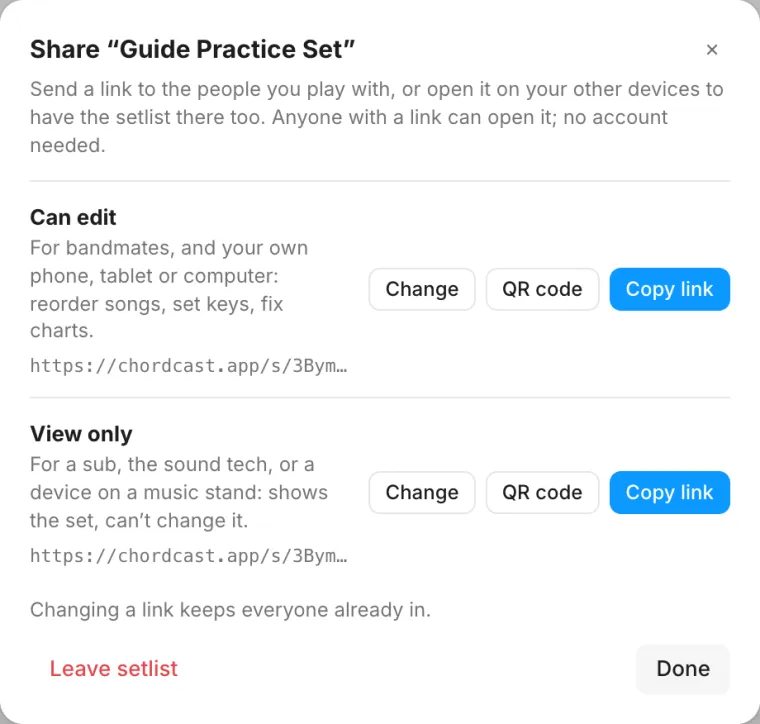
- Tap Make Share Links. You get two links: an edit link and a view-only link.
- Send each link with Share, show it as a QR Code for someone across the room, or Copy it.
Once a setlist is shared, the same menu item reads Cloud Sharing… and opens the same sheet. To share a single song, touch and hold it in the library and choose Share to Cloud…: it's shared as a one-song setlist named after the song.
| Link | Give it to | They can |
|---|---|---|
| Edit link | Bandmates, and your own other devices | Reorder songs, set keys, fix and add charts |
| View-only link | A sub, the sound tech, a device on a music stand | See the setlist and charts, always up to date, without changing them |
The link is the key. There are no accounts or passwords: anyone who has the edit link can change the setlist and its charts, including someone it was forwarded to. Send the edit link only to people who should edit, and the view-only link to everyone else. If an edit link gets out, use Change a Link… so it stops working, and Remove anyone in Who has it who shouldn't be there.
Setlists and songbooks
When you share, you can choose Share as a Songbook instead. A shared setlist keeps its order and holds up to 500 songs. A songbook holds up to 5,000, sorted by title and searchable: the band's whole repertoire, to pick setlists from.
Who has it, and changing access
- Who has it lists every device that joined, by name, marked Can edit or View only. Someone who can edit can change a device's access or Remove it. A removed device loses access until someone sends it a link again.
- Change a Link… replaces the edit link or the view-only link. The old link stops working for anyone who hasn't opened it yet; everyone already in stays in.
- Stop Sharing on This Device takes the setlist off the cloud for this device only. The setlist stays in your library.
There are no accounts: having a link is what gives access, so who has the edit link decides who can change the setlist. Devices are known by name: the same name you set as Your Name for band sync, and in the web app, the name it asks for on your first visit.
What syncs, and how edits merge
- The setlist's name and the order of its songs.
- Every chart in it.
- The band's key for each song.
Charts in a setlist you can edit save as you type: the editor shows Saving… and Saved, and has Done instead of Save. If a bandmate changes the same chart while you have it open, their change is merged into yours and the editor says so (“Merged in a bandmate's changes”).
- Two people edit different bars: both edits are kept.
- Two people edit the same bar: the newer edit wins.
- One person reorders the set while another adds a song or renames it: both happen.
- Two key changes to the same song: the newest wins.
The cloud never moves anyone's screen. Following the leader, the current song and live key changes are Bluetooth band sync, so a band plays the same way with or without a connection.
Offline
A shared setlist keeps working without a connection, and shows whether it's up to date. Edits you make offline are sent when the device reconnects. In the web app, charts you've opened are kept in the browser, and Perform mode tells you when the whole setlist is Saved for offline.
Opening a link someone sent you
- On an iPhone or iPad with ChordCast installed, a setlist link opens in the app and the setlist joins your library.
- Anywhere else, the link opens the web app in the browser. Its Open in App button hands it to the app.
- If tapping a link doesn't open the app, copy it and use Open Setlist Link… under New Setlist in the sidebar (iPhone, iPad and Mac).
- With a view-only link, editing a chart offers Duplicate and Edit: an editable copy of your own that never changes the band's.
If a link says it doesn't work any more, someone changed it: ask a bandmate for the new one.
The web app
At chordcast.app a setlist opens in any browser, on any computer, tablet or phone, with no install. Songs are on the left (drag to reorder), the same visual editor the apps use is in the middle, and the details are on the right: the song's title, Key for the band, Download PDF for the song or the whole setlist, Duplicate, and People, where an icon beside each person shows whether they can edit or only view (an editor can click it to change their access). Text at the top opens the chart's text beside the visual editor.
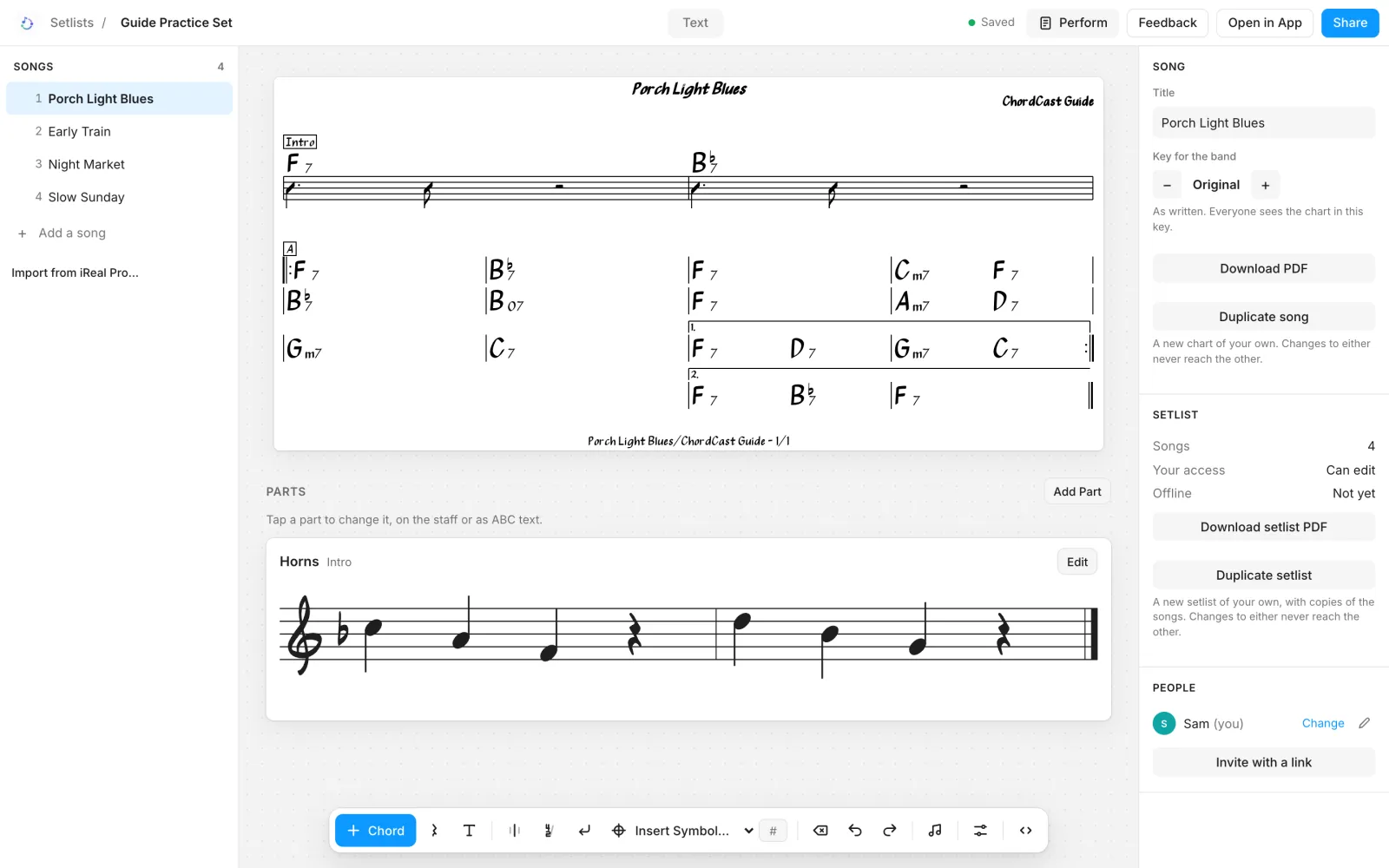
You can start a setlist or a chart here too (New setlist, New chart, or iReal Pro to import a playlist), then share it and open it in the app later. The browser keeps no library of its own; your setlists are listed on its home page.
Perform mode
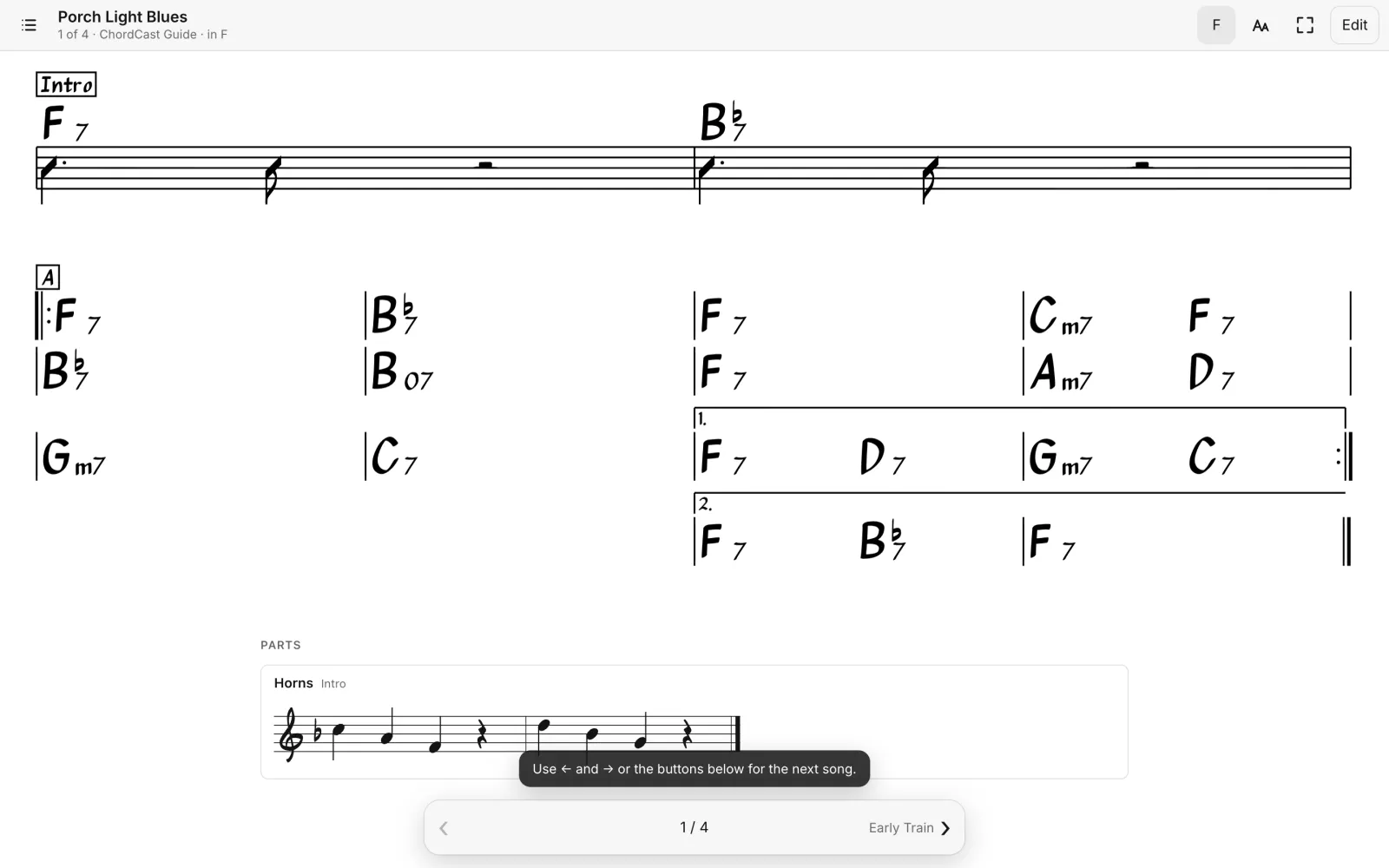
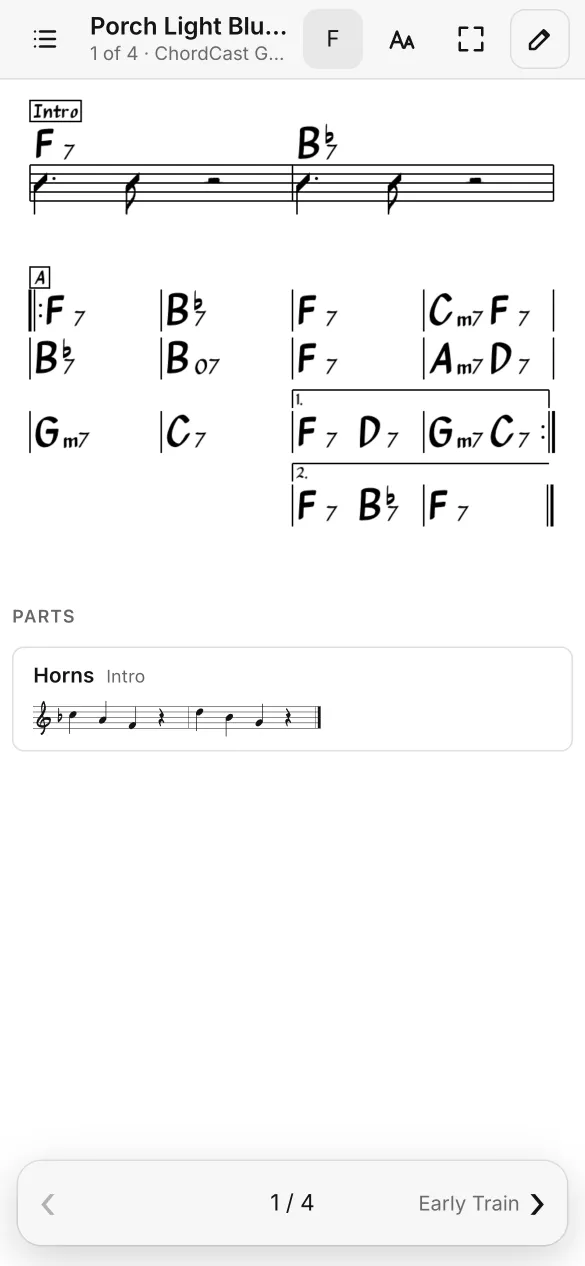
Perform shows one chart at a time, full screen, for the stage. Move between songs by swiping, with ← and → (a page-turner pedal that sends arrow keys works too), or with the buttons at the bottom. The screen stays on while a chart is showing. The toolbar has the songs list with search, Transpose, Display (text size and light or dark), Full screen, and Edit to go back to the workspace. With a view-only link, Transpose sets your key for a song in this browser, on top of the band's. Perform mode opens by default for view-only links and on phones.
Bluetooth and the cloud together
The two work side by side. Use cloud links to prepare during the week, and Bluetooth on stage. When a setlist that's shared to the cloud is also shared with the band over Bluetooth, it carries its cloud link, so bandmates join the cloud copy too and stay up to date after they leave the room. If the band edits charts at a gig with no internet, the changes reach the cloud from whichever device gets a connection first.
Deleting a shared setlist
Stop Sharing on This Device removes your device from it. To have a shared setlist deleted from the cloud entirely, follow the steps in the privacy policy.
Read more: How to share chord charts with your band.