
User guide · Running the set
Build a setlist and run it on stage
A setlist is the order you'll play, with each song in the key you'll play it in. On stage, ChordCast shows one chart at a time as large as your screen allows. You move through the set with a swipe, a tap or an arrow key.
Build a setlist
- Tap New Setlist under Setlists (on the iPhone home screen, or in the sidebar on iPad and Mac) and give it a name.
- Tap Add Songs. Search, then tap songs in the order you'll play them: each gets a number. Tap Add.
- To reorder, tap Edit and drag (iPhone and iPad), drag the rows directly (Mac), or use the drag handles (Android).
You can also add a song from the library: touch and hold it and choose Add to Setlist, or New Setlist with This Song. To take one out, swipe it and tap Remove.
The key for each song
Touch and hold a song in the setlist (right-click on a Mac) to set its key for this set: Up a Semitone, Down a Semitone, the Spelling (Auto, ♭ Flats or ♯ Sharps), or As Written. The setlist shows each song's key and how far it's moved. In a shared or band setlist, the key is the band's, so everyone gets it.
The setlist's More (⋯) menu has Add Songs…, Rename…, Duplicate, Delete Setlist… (the songs stay in your library), and the two ways to share it: Share with Band over Bluetooth and Share to Cloud… with a link.
Play the set
Tap Play from Start (the ▶ button) to open the first song, or tap any song to start there. A chart opened from a setlist knows its place in the set.
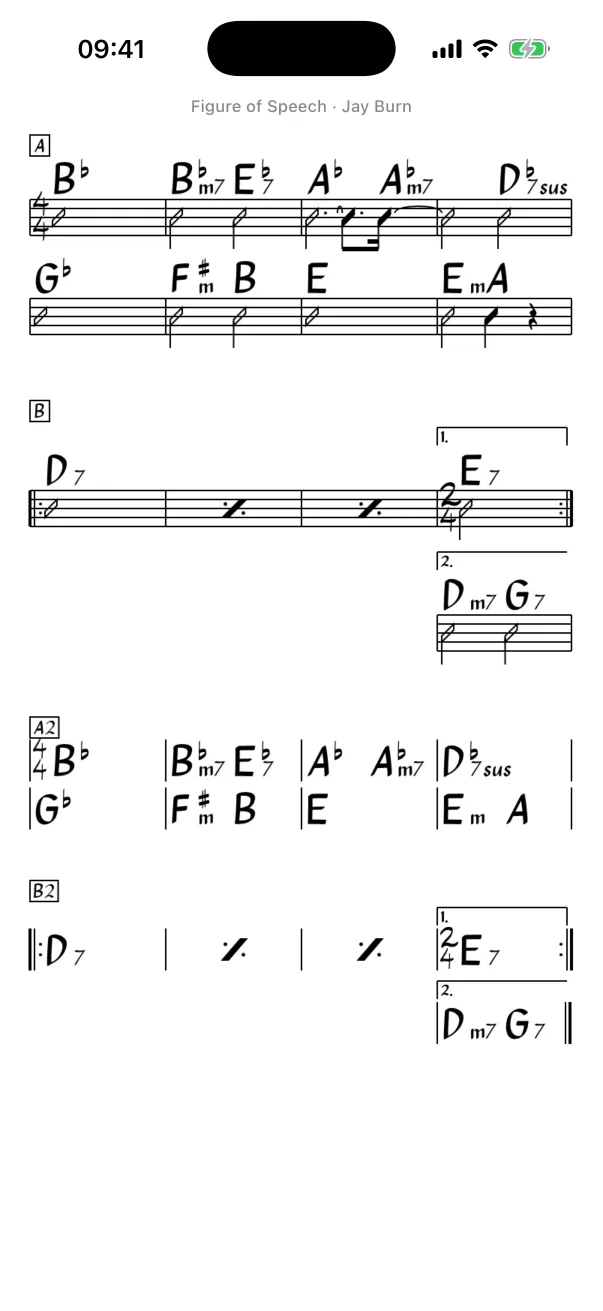
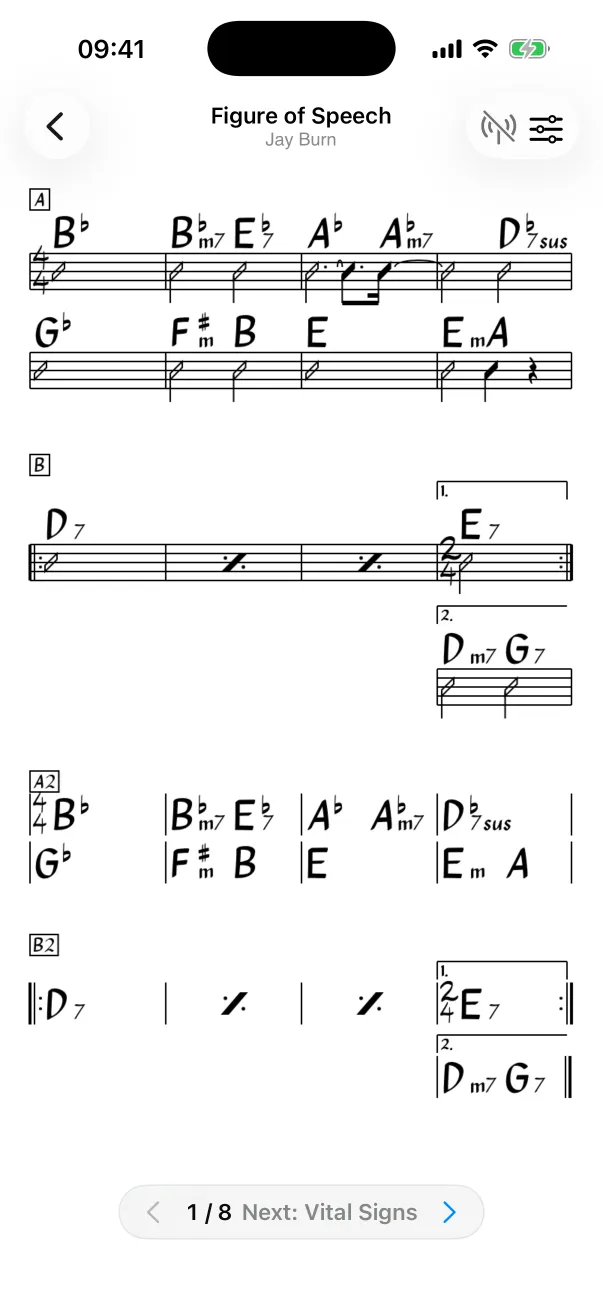
Full-screen charts on iPhone
On an iPhone a chart opens full screen: no toolbar, no status bar, just a small line at the top with the title and artist. Tap the chart to bring the bars back (Back, the chart controls, the setlist pill) and tap again to hide them. Android phones work the same way. On an iPad, a Mac and an Android tablet the chart always has its toolbar, and the chart gets the rest of the screen.
Moving between songs
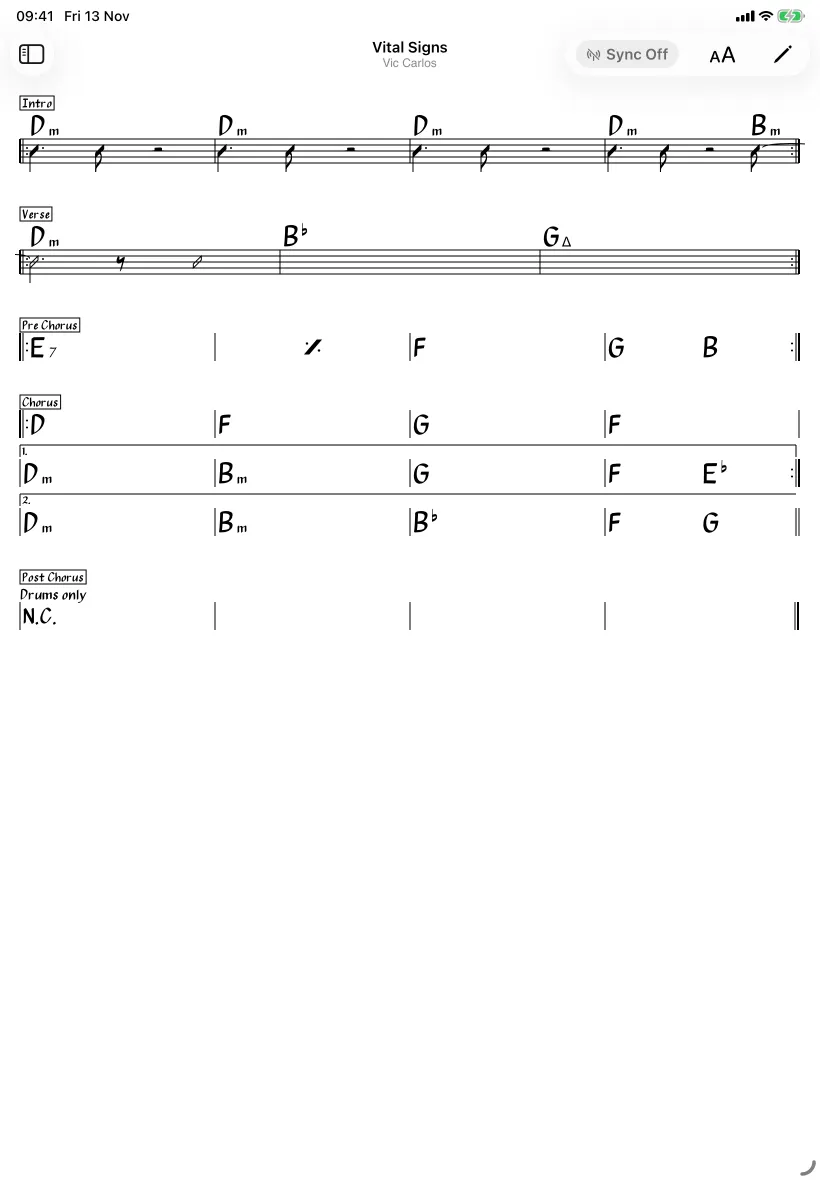
- Swipe left or right on the chart for the next or previous song (iPhone, iPad and Android). On a phone, swiping between songs works while the chart is full screen; with the bars showing, a sideways swipe goes Back instead.
- The pill at the bottom of the chart shows where you are (“1 / 8”), with ‹ and › buttons, and the next song's name when there's room. It appears when you opened the chart from a setlist; on iPhone, tap the chart to see it. On Android it's a bar with the previous and next songs' titles.
- Arrow keys: ← and → go to the previous and next song on a Mac, and on an iPad or iPhone with a keyboard. E opens the chart in the editor.
Swiping moves through the setlist you opened the chart from. A chart opened from the library swipes through the library in its list order instead. When you lead a band, every move goes to every follower's screen too.
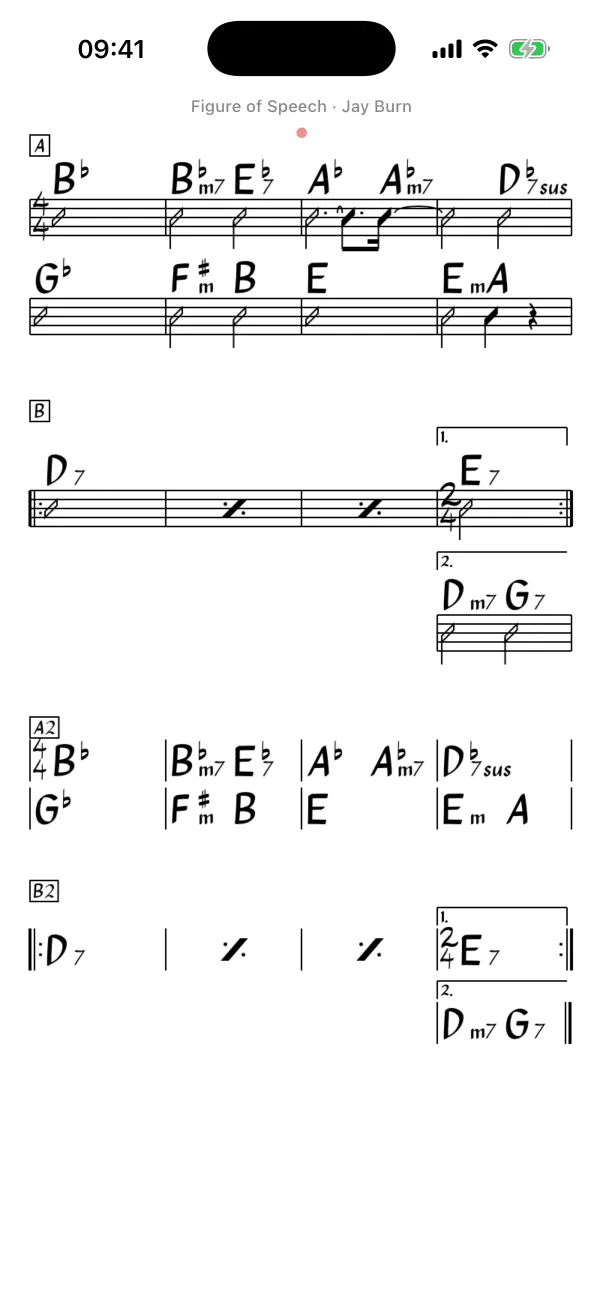
The tempo dot
Counting off a tune at the right tempo is hard after a loud song. When a song with a tempo opens, a small red dot at the top of the chart blinks its beat sixteen times, a little bigger on the first beat of each bar, then disappears. It's silent, so it only tells you, not the room. Tap the dot to dismiss it early.
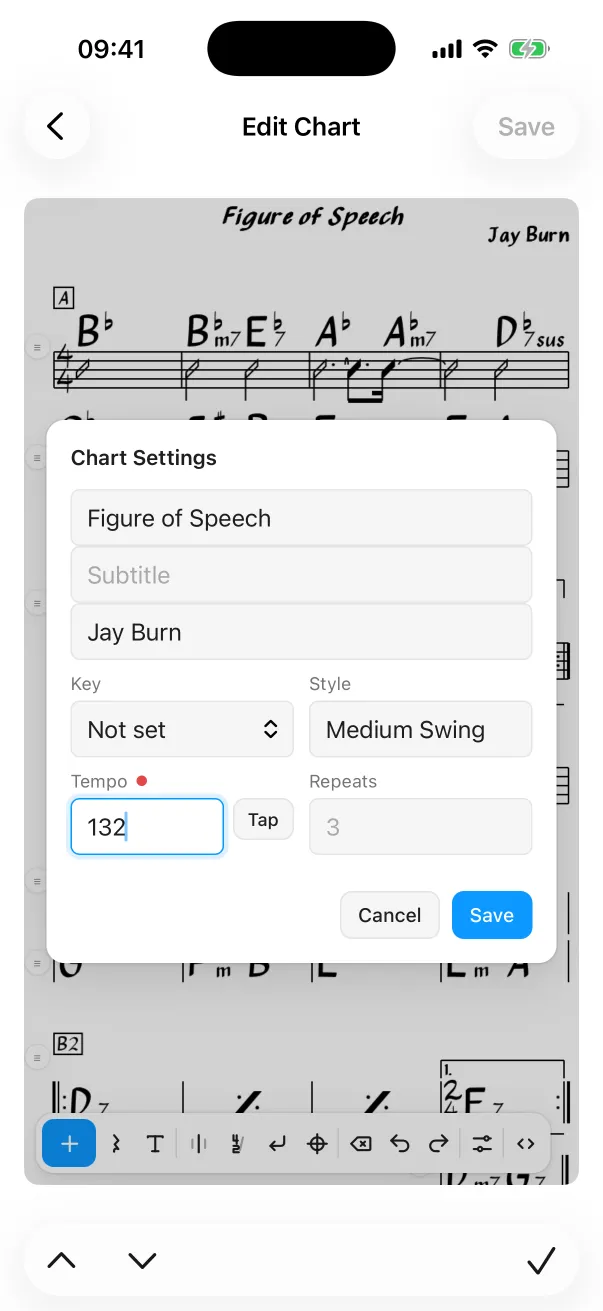
- A song has a tempo when its chart has one: in the editor, open Chart Settings and type the beats per minute, or tap Tap in time with the music. A dot beside Tempo blinks what you set. In the chart's text it's the
%TEMPOline (reference). - Songs imported from iReal Pro bring their tempo with them.
- It counts in the song's time signature, so a waltz blinks in threes.
- Turn it off in Settings → Charts → Tempo Dot. It's on iPhone, iPad, Mac and Android.
Key and zoom
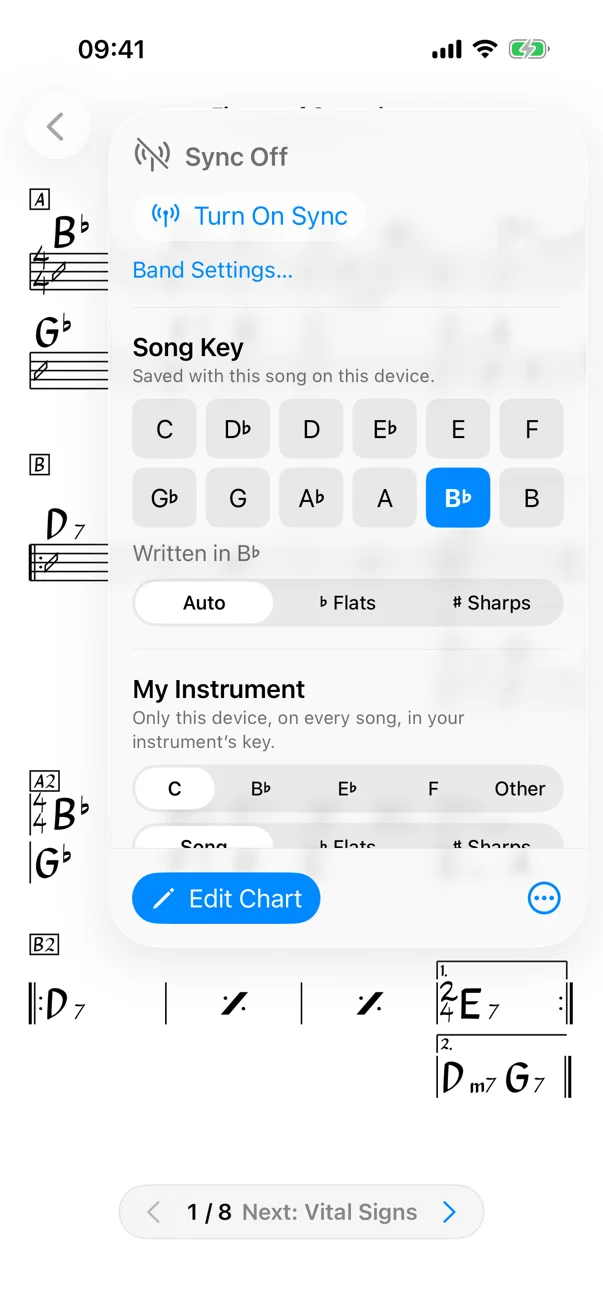
On an iPhone, the button at the top right of a chart opens its controls; on an iPad or a Mac it's Key and Zoom in the toolbar (it shows the transposition, like “+3”, when you've moved the key).
- Song Key shows all twelve keys, as iReal Pro does: tap the one to play in. The key it's written in is outlined. Spelling is ♭, ♯ or Auto. In a shared or band setlist it changes the key for everyone.
- My Instrument is for transposing instruments: C, B♭, E♭ or F (Other for any other offset, in semitones). It applies to every song, on this device only. You see the band's key, moved for your instrument.
- Zoom from 70% to 180%.
- Reset Mine puts your instrument, spelling and zoom back.
Reading comfort
- Charts fit the width of the screen and are cut into pages that snap as you scroll. A small pill shows the page number while there's more below; tap it for the next page.
- Dark mode inverts the chart to light on dark, following your device.
- The screen stays on while a chart is showing.
Next: get the band on the same chart over Bluetooth.