
User guide · At the gig
Get the whole band on the same chart with Bluetooth
In the same room, ChordCast devices talk to each other directly over Bluetooth. Whoever leads picks the song and the key, and every other screen follows. There's no Wi-Fi, no signal and no account involved, so it works in a basement club, a field or a church hall.
How band sync works
- Each player turns on sync. Devices nearby find each other and form a band.
- One device leads. When the leader opens a song, changes its key or moves through the setlist, every follower's screen goes there too, usually within a second.
- A player who doesn't have the song gets it from the band automatically, so someone sitting in can read along from the first tune.
- iPhones, iPads, Macs and Android devices all play in the same band. The web app doesn't use Bluetooth; it syncs through cloud links.
Turn sync on and off
Sync is off until you turn it on, and it stays the way you leave it: if the app closes mid-gig, reopening it turns sync back on in the same band.
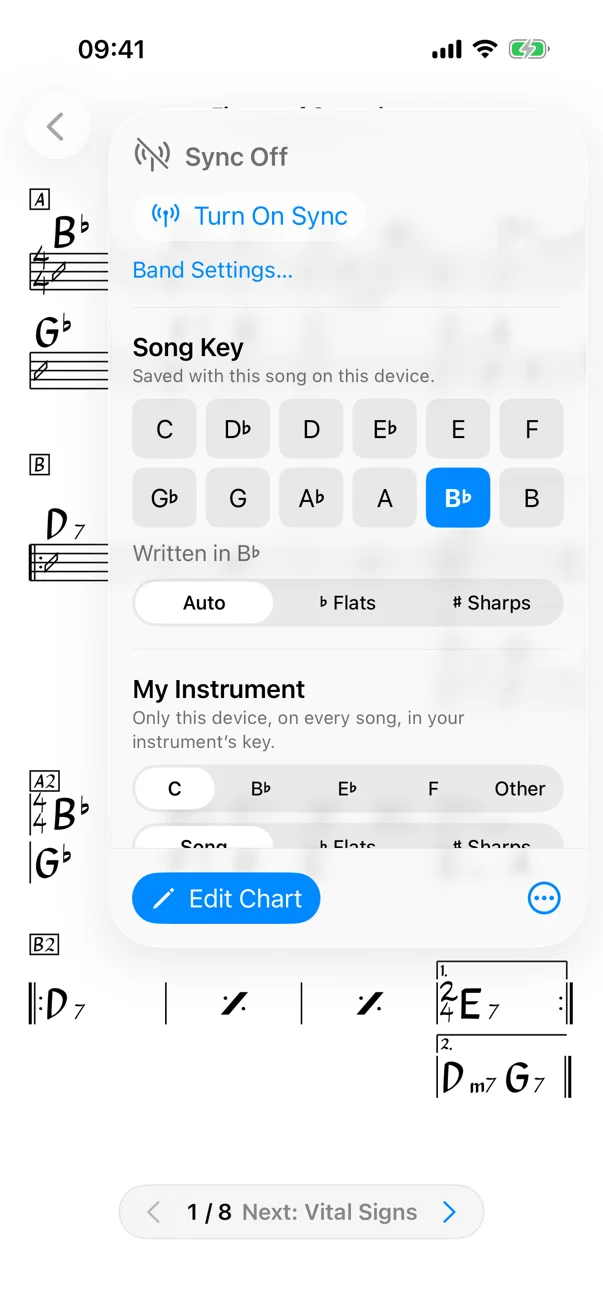
- iPhone: tap the sync pill at the top of the home screen (it says Off) or open Band and tap Turn On Sync. In a chart, the same controls are in the chart button at the top right.
- iPad: the sync pill is in the chart's toolbar and in the sidebar.
- Mac: the sync pill sits at the top right of the window on every screen. Click anywhere on it to open its menu: Turn On Sync or Turn Off Sync, Take Lead, Auto Follow Leader, who's in your band, and Band Settings…. You can turn sync on or off at any time, mid-song included.
- Android: open Band from the library and switch on Sync with nearby bandmates. While sync is on, a notification keeps it running in the background, with a Stop sync button.
The pill tells you where you stand:
| The pill says | Meaning |
|---|---|
| Sync Off | Bluetooth sync is off. Your screen moves only when you do. |
| Looking for band | Sync is on and visible to players nearby; nobody has joined yet. |
| Leading · 3 | You lead a band of three. Your song and key go to everyone. |
| Following Sam | Sam leads, and your screen follows. |
The first time, your device asks for permission to use Bluetooth (on Android, “Nearby devices”). Allow it, or bandmates can't find you.
Start or join a band
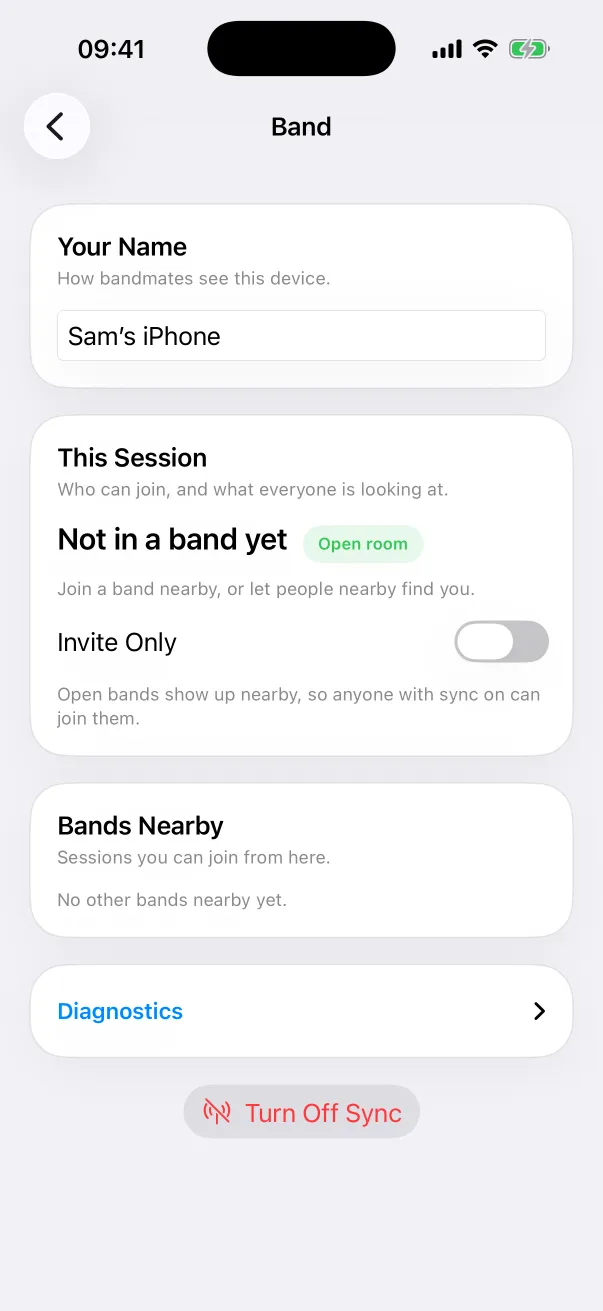
- Everyone turns on sync. Set Your Name on the Band screen so bandmates know who's who (it starts as your device's name).
- On the Band screen, bands nearby appear under Bands Nearby. Tap Join on the one you want.
- When your last band comes back into range, ChordCast reconnects to it on its own.
Invite-only bands
A band is open by default: anyone nearby with sync on can see it and join. Turn on Invite Only and nobody nearby can see the band or ask to join; instead, members see People Nearby with an Invite button. The invited player gets a prompt to Join or choose Not Now. Members can also remove someone with Remove from Band.
Leading and following
- To lead, choose Take Lead (from the sync pill, the chart controls or the Band screen). Handing over the lead between songs is one tap. If the leader's device drops out, another takes over.
- With Auto Follow Leader on (the default), your screen jumps to the leader's song. Turn it off and you're asked instead: “Sam is already on this chart. Open it here too?”, with Stay Here or Open Chart.
- You can look at other songs at any time; browsing never moves anyone else. A Back to Band button (on a chart, “Back to” and the song's name) takes you back to the band's song.
- While you have a chart open in the editor, following waits until you close it.
Keys: the band's key and your own
Two separate settings decide the key you see:
- Song Key is the band's key for the song: tap the key to play in. When the leader changes it, everyone's chart moves. In a band setlist, any member can change a song's key.
- My Instrument is yours alone, on this device, for every song: choose B♭ if you read for a B♭ instrument, and your chart is always a whole step up from the band's. It never leaves your device.
Both are in the chart's key panel (Key and Zoom on iPad and Mac); see Key and zoom.
Share a setlist with the band
While you're in a band, a setlist's More (⋯) menu has Share with Band. Every song in it goes to everyone in range, a progress line shows who has it (“2 of 3 bandmates have it”), and it's saved for offline use on each device. It's now a band setlist: when anyone reorders it, adds a song or changes a key, the change reaches everyone, and the newest change wins.
If the setlist is also shared to the cloud, the band gets its link too, and bandmates who can edit it join the cloud copy. Edits the band makes without internet reach the cloud through whoever gets online first. More in Bluetooth and the cloud together.
Everyone can fix a chart
Charts get fixed in rehearsal, and anyone in the band can fix them. Sharing a song with the band means the band can edit it: a fix by anyone goes to everyone's copy, the sharer's included, and the band always plays the newest version. A fix made away from the band (offline, or in a cloud setlist) reaches everyone once you're back together. There's never a "your version" beside the band's.
Want your own take on a song that the band doesn't touch? Duplicate it: the copy is a separate song of your own.
What travels over Bluetooth
- The chart the band is on, sent to anyone who doesn't have it.
- Every chart in a setlist shared with the band, and the setlist itself.
- The band's key for each song, and who leads.
- Edits to the band's charts once they're saved.
Nothing goes through the internet or through ChordCast's servers.
Battery, the background and auto-off
- If nobody with sync on has been nearby for 15 minutes, sync turns itself off to save battery and tells you (“Band Sync Turned Off”), with a button to turn it back on.
- On iPhone and iPad, Bluetooth sync pauses while ChordCast is in the background and picks up when you come back.
- On a Mac, sync keeps running while ChordCast is in the background.
- On Android, sync keeps running in the background, with a notification.
If a bandmate doesn't show up
- Both devices need ChordCast open with sync on, within Bluetooth range.
- Check that Bluetooth is on and ChordCast is allowed to use it (on iPhone and iPad: Settings → Privacy & Security → Bluetooth; on Android: the app's Nearby devices permission).
- If the band is invite-only, someone in it has to invite you.
- A Needs an Update section in the band list means one device's ChordCast is too old to sync with the others. Update it.
- Still stuck? Support has a contact address; the Band screen's Diagnostics help when you report it.
Read more: A setlist app that works without internet.