
User guide · Beyond chord grids
Rhythms, melody parts and better-looking charts
A chord grid tells a band what to play. A good chart also tells them how: the hits the horns land on, the stop before the chorus, the riff everyone needs to know. ChordCast charts can carry all of it, and still read at a glance.
Charts that look like a copyist wrote them
- A handwritten music font. Chords, rhythms and signs are drawn in Petaluma, a jazz-style hand, with the chord quality small and raised (Cm7) the way charts are written by hand.
- Barlines that line up. Within a section, ChordCast aligns barlines from one line to the next, so the form is visible before you read a chord.
- A staff only where it's needed. Lines with written rhythm get a five-line staff with the rhythm in slash noteheads; plain chord lines stay clean, and mean “play time”.
- Fitted to your screen. Charts are laid out for the width of the device, cut into pages, and tightened slightly when that saves a page turn.
- Transposed properly. When the key changes, chords are re-spelled for the new key (with ♭ or ♯ as you choose).
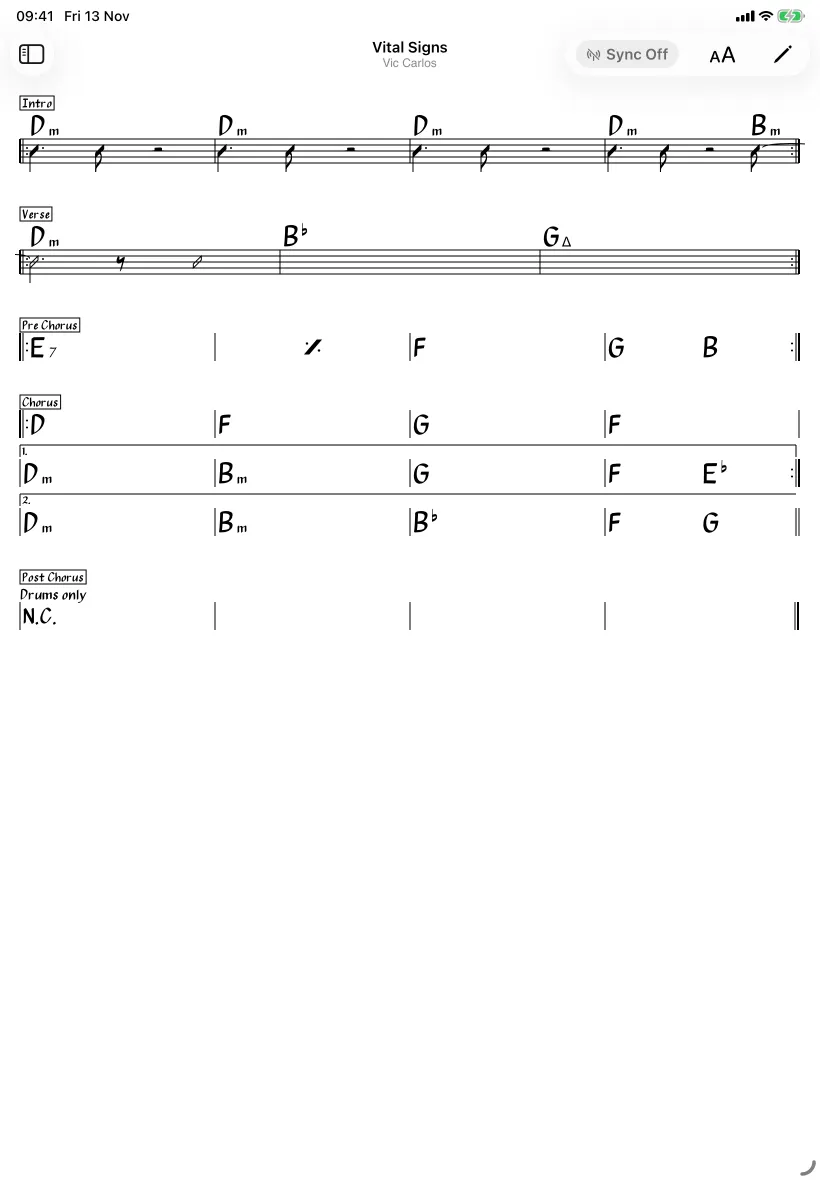
Written rhythms: hits, pushes and stops
Give any chord a length and that line gets a staff with the rhythm drawn on it. Use it for the places a band has to play together: kicks and hits, a push into the next bar, a stop, a triplet figure. Leave everything else as a grid.
%TITLE="Rhythm figures"

[Hits]
| F7:4. F7:8 r:2 | Bb7:4. Bb7:8 r:2 |
| F7:8 F7:8 r:4 F7:4 r:4 | C7:2 Bb7:4 F7:4~ | :1 |

[Push and triplets]
| Dm7:2 G7:2 | <:8 CM7:1 |
| Dm7:4_3 Em7:4_3 FM7:4_3 G7:2 | C:1 |In the visual editor
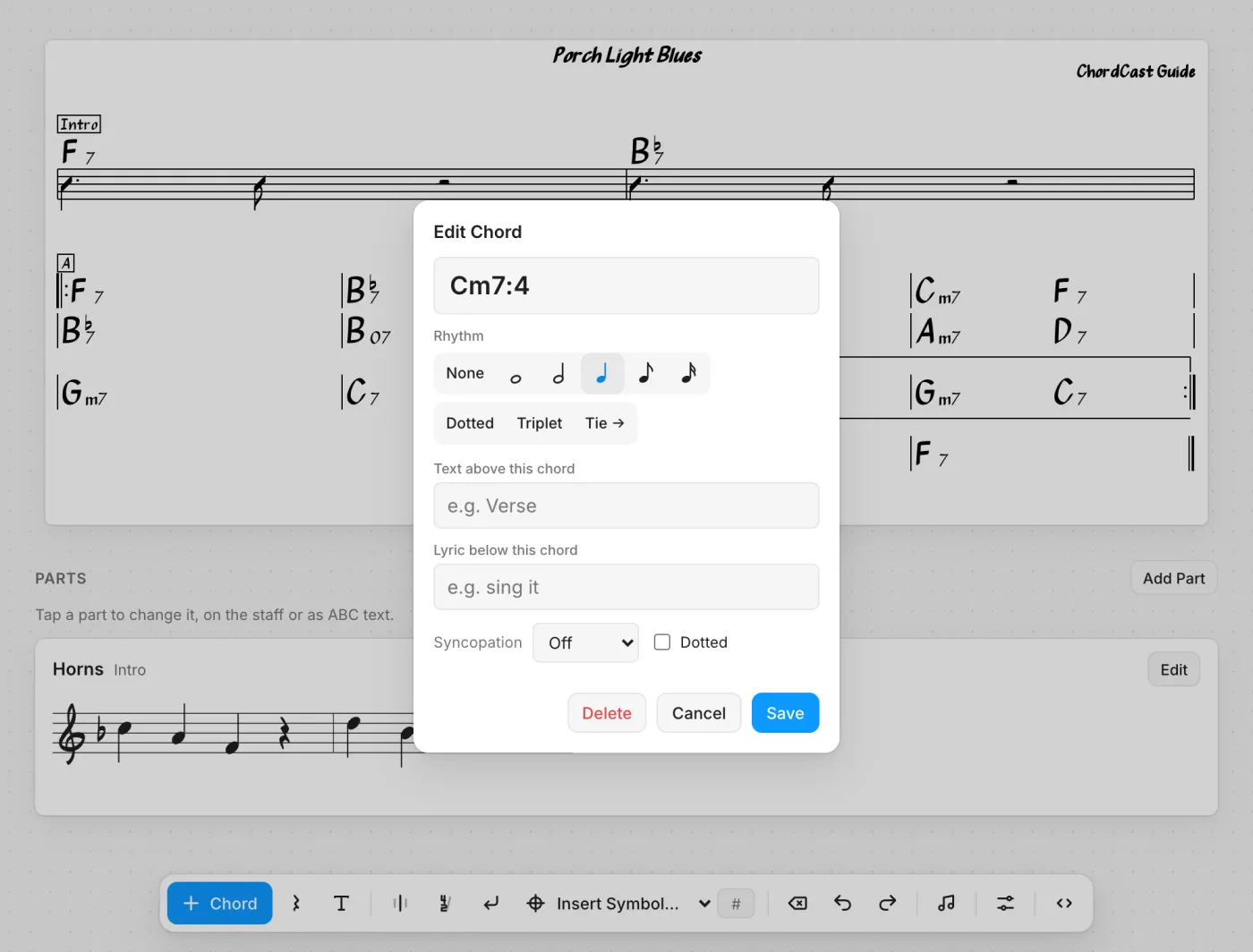
- Tap a chord.
- Under Rhythm, choose a length: whole, half, quarter, eighth or sixteenth. Add Dotted, Triplet or Tie → as needed.
- For a push, set Syncopation to the amount the chord comes early (Quarter, Eighth or 16th).
- Use Rest in the toolbar for rests, with the same lengths.
As text
A length goes after a colon: C:4, C:8., C:4_3 for triplets, ~ to tie,
r:2 for a rest, and <:8 before a chord to push it. The full list is in the
chart text reference, and the
rhythm notation article covers how to write rhythms bands read at sight.
Melody parts
Some things don't fit in a chord chart: the head of a tune, a horn line, the bass riff that is the song. A part is a short piece of notation that travels with the chart: a label (“Horns”), the bars it belongs to (“Intro”, “A 1–4”), and the music, written in ABC notation or entered on a staff. Parts are drawn below the chart, in the same handwritten style, and move with the key when you transpose.
Turning parts on. In the web app, parts are on. In the iPhone, iPad, Mac and Android apps they're experimental: turn on Settings → Experimental → ABC Parts. Charts keep their parts either way; with the setting off they're just not shown.
Add a part
- In the visual editor, tap Parts (♫) in the toolbar, or Add Part under the chart.
- Give it a Label and, if you like, the Bars it belongs to.
- Choose Staff to enter notes by tapping, or ABC text to type or paste ABC. You can switch between them at any time.
- On the staff, set the Key, Time and Clef, then add notes with the C–B buttons (or type A–G), and choose lengths, accidentals, ties and rests from the palette. Tap a note to select it; drag it, or use ↑ and ↓, to move it.
- Tap Add (or Save).
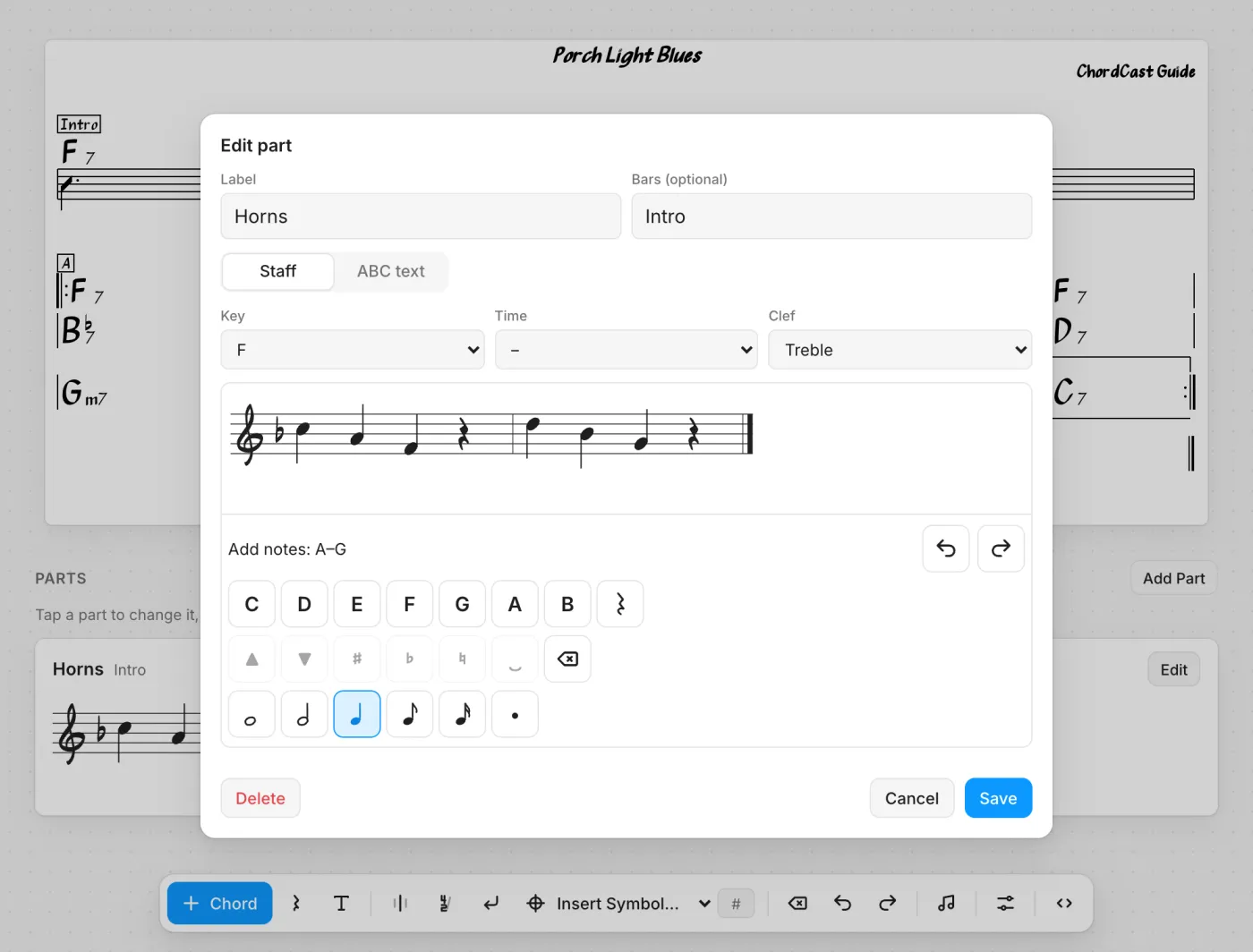
A new part starts in the song's key. When you change the chart's key in Chart Settings and let it move the chords, the parts move too, re-spelled for the new key.
Parts in the chart's text
Each part is one line at the top of the chart.
%TITLE="Night Market"
%ARTIST="ChordCast Guide"
%KEY="Dm"
%ABC_PART={"label":"Horns","bars":"A 1–4","abc":"X:1\nL:1/8\nK:Dm\nA2 d2 f2 e2 | d4 z4 | G2 B2 d2 c2 | B4 z4 |]"}

[A]
||: Dm7 | G7 | Dm7 | A7b9 |
| Dm7 | G7 | Em7b5 A7 | Dm7 :||Related
- Chart editing tutorial: try rhythms in the real editor.
- The experimental backing band, which plays the chart you're looking at.
- How to write chord charts with rhythm notation.