
User guide · Basics
Get started with ChordCast on every device
ChordCast runs on iPhone, iPad, Mac and Android, and in any web browser. Every player in a band can use whatever they brought. There's no account to make: install it, open it, and the sample setlist is ready to try.
Get the app
ChordCast is free. The iPhone and iPad app is on the App Store; the Mac and Android apps are in beta.
| Device | How to get it | Needs | Bluetooth band sync |
|---|---|---|---|
| iPhone and iPad | Download it from the App Store. | iOS or iPadOS 17 or later | Yes |
| Mac | Download the Mac app from the home page, unzip it and drag ChordCast to Applications. ChordCast → Check for Updates… tells you when there's a newer version, and the app also checks by itself. | macOS 14 or later on an Apple silicon Mac | Yes |
| Android | The Android beta is on Google Play. On the home page, tap the Google Play badge and enter the email address of your Google account; you'll get the link to join. | Android 8.0 or later | Yes |
| Web browser | Open chordcast.app/s/new to make a shared setlist or a chart, or open a setlist link a bandmate sent you. See the web app. | Any current browser | No: it syncs through shared links |
A band can mix all of them, and the web app, in one setlist. A few extras, such as Roll Chords, are on Apple devices only for now.
The home screen
The home screen leads to the Library (every song you have), Band (Bluetooth sync with players nearby), your Setlists, and Settings. The small pill at the top right shows whether band sync is on. On an iPad and a Mac the same list is a sidebar beside your library and the chart.
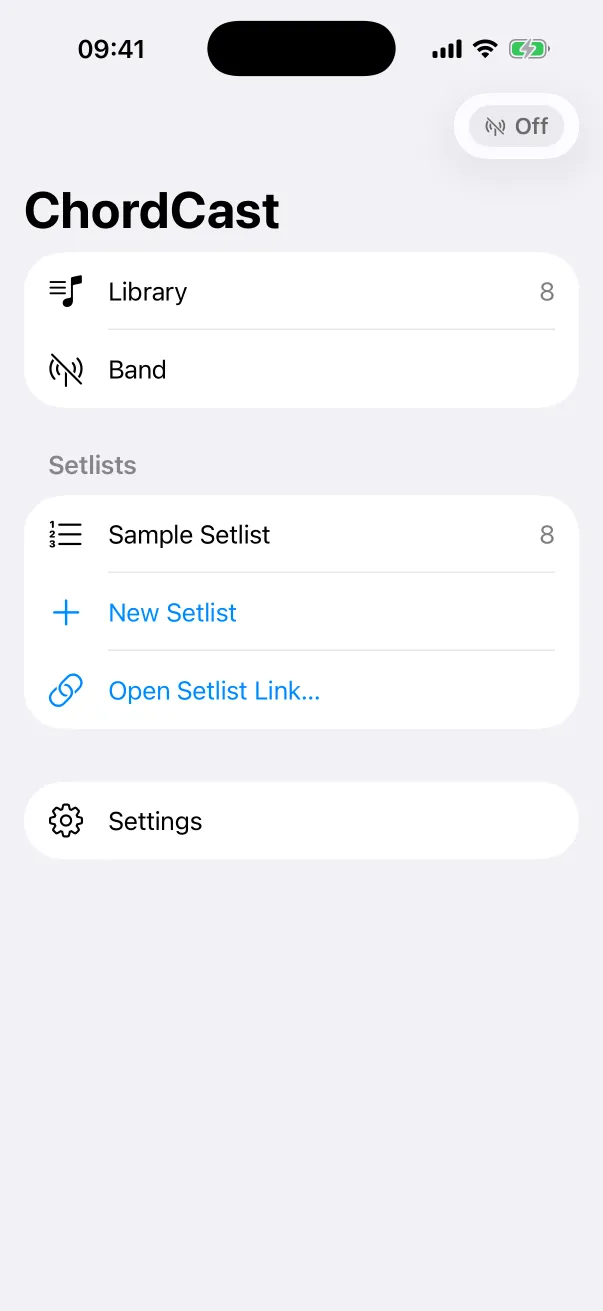
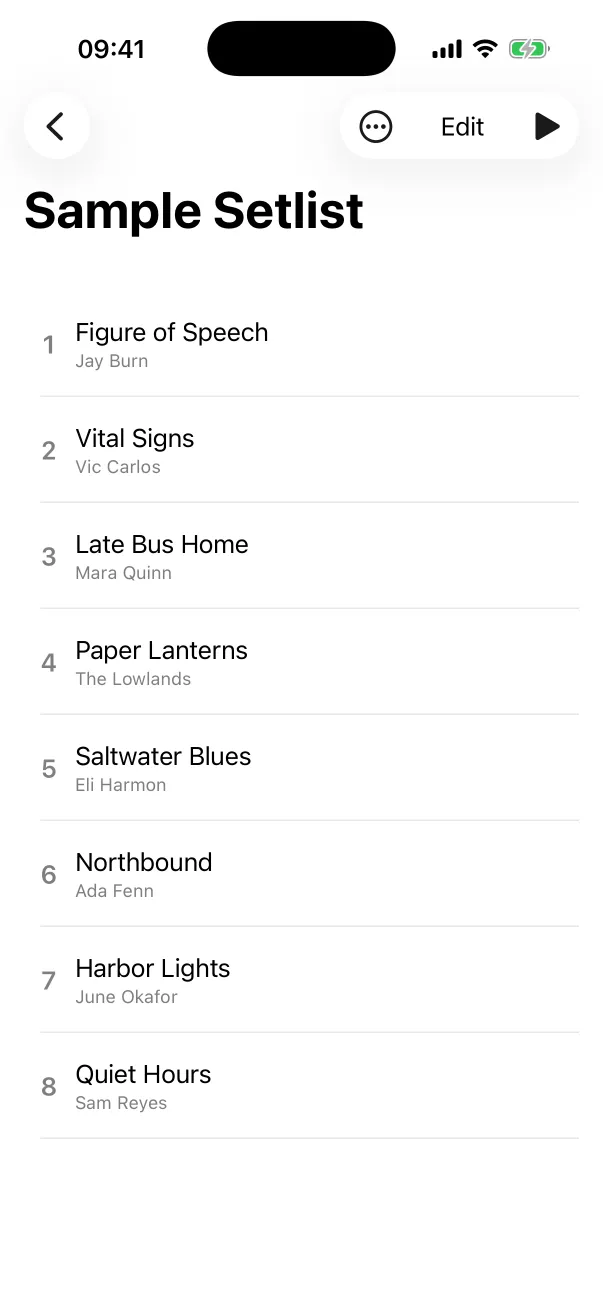
A new install comes with a Sample Setlist of eight made-up songs, so you can try everything before you add your own. Delete it whenever you like.
Your library
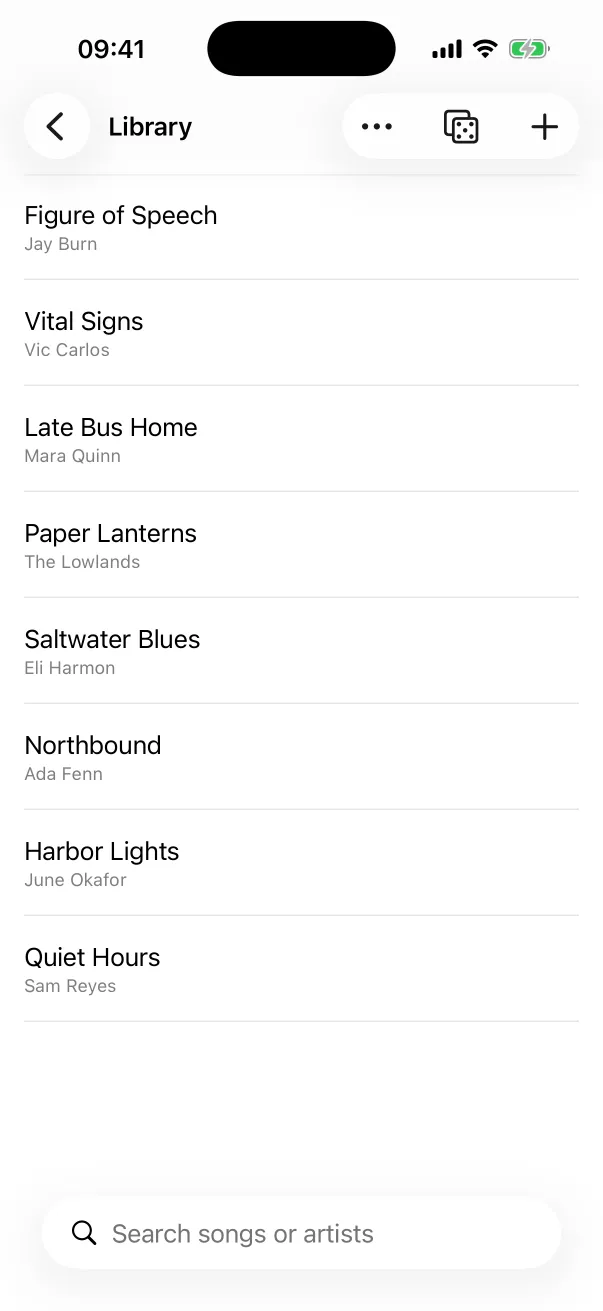
The library holds every chart on the device. Search finds songs by title or artist. The toolbar has:
- New Chart (+): tap it for a blank chart that opens straight in the editor, or open its menu to start from a template: Blank, Jazz Blues, Blues Shuffle, 32-Bar Standard (AABA), Jazz Waltz, Bossa Nova, Pop Song, or ii–V–I in All Keys. On a Mac, ⌘N makes a new chart and File → New Chart from Template lists the templates.
- Roll Chords (the dice) makes up a chord progression to practise over. See Practice on your own.
- More (⋯): Select Songs… to add many songs to a setlist or delete them at once, Browse iReal Pro Forums… (see Import from iReal Pro), and Sort By Recently Edited or Title.
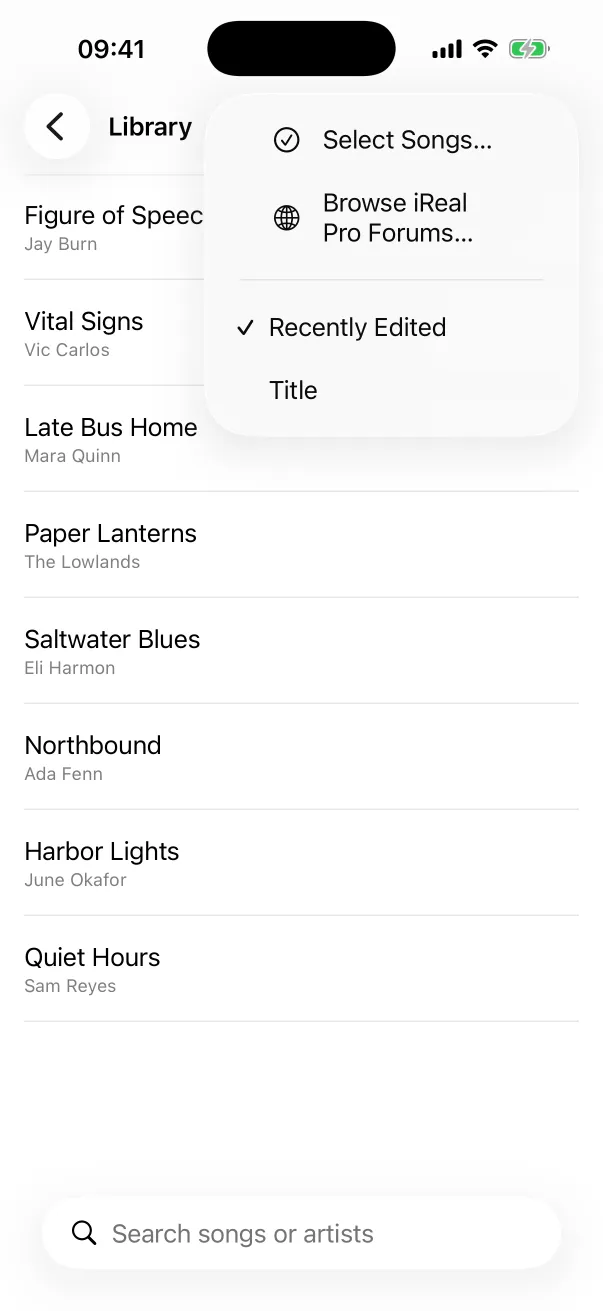
Touch and hold a song (right-click on a Mac) for Add to Setlist (including New Setlist with This Song), Rename…, Duplicate, Share to Cloud… and Delete…. Deleting a song also removes it from every setlist. On Android, the library has Setlists and Songs tabs, a Band button, and the import and forum commands in its ⋮ menu.
Opening a chart
Tap a song to open it. On an iPhone the chart opens full screen; tap it to bring back the bars. Everything about reading charts on stage is in Setlists on stage, and editing is in Edit charts.
ChordCast follows your device's light or dark appearance, charts included, and keeps the screen awake while a chart is showing.
Settings, feedback and languages
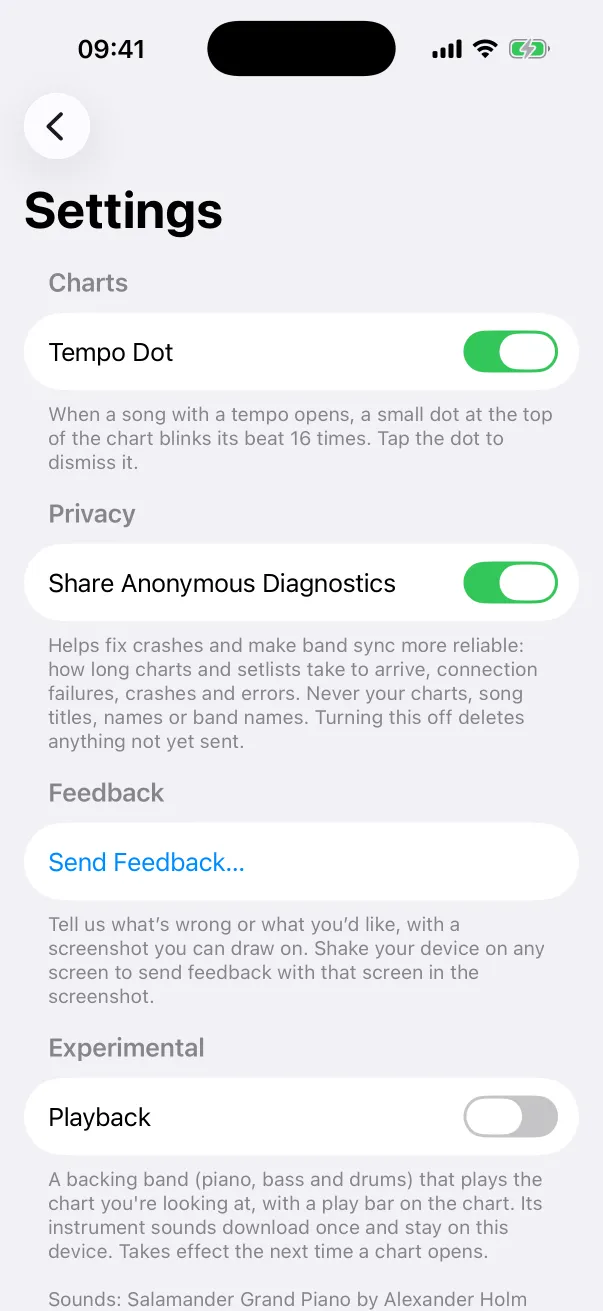
- Charts → Tempo Dot (on): the small dot that blinks a song's tempo when it opens. See the tempo dot.
- Privacy → Share Anonymous Diagnostics (on): sync timings, connection failures, crashes and errors, to make band sync more reliable. Never your charts, song titles or names.
- Feedback → Send Feedback…: a screenshot you can draw on, plus a comment. On an iPhone or iPad you can also shake the device on any screen; on a Mac it's in the Help menu.
- Experimental: Playback, a backing band that plays the chart, and ABC Parts, melody and horn parts shown below the chart. Both are off until you turn them on. See melody parts and playback.
On a Mac, Settings is in the sidebar and under ChordCast → Settings… (⌘,). ChordCast is in English, German, French, Spanish, Italian and Japanese, and follows your device's language.
Where your charts live
Charts and setlists are stored on your device. They leave it only when you share them: with bandmates nearby over Bluetooth (Play together), or to the cloud with a link (Share with a link). The privacy policy says exactly what is kept and how to have it deleted. Questions or problems: see Support.