User guide · Writing a chart
Chart editing tutorial: visual editor and text editor
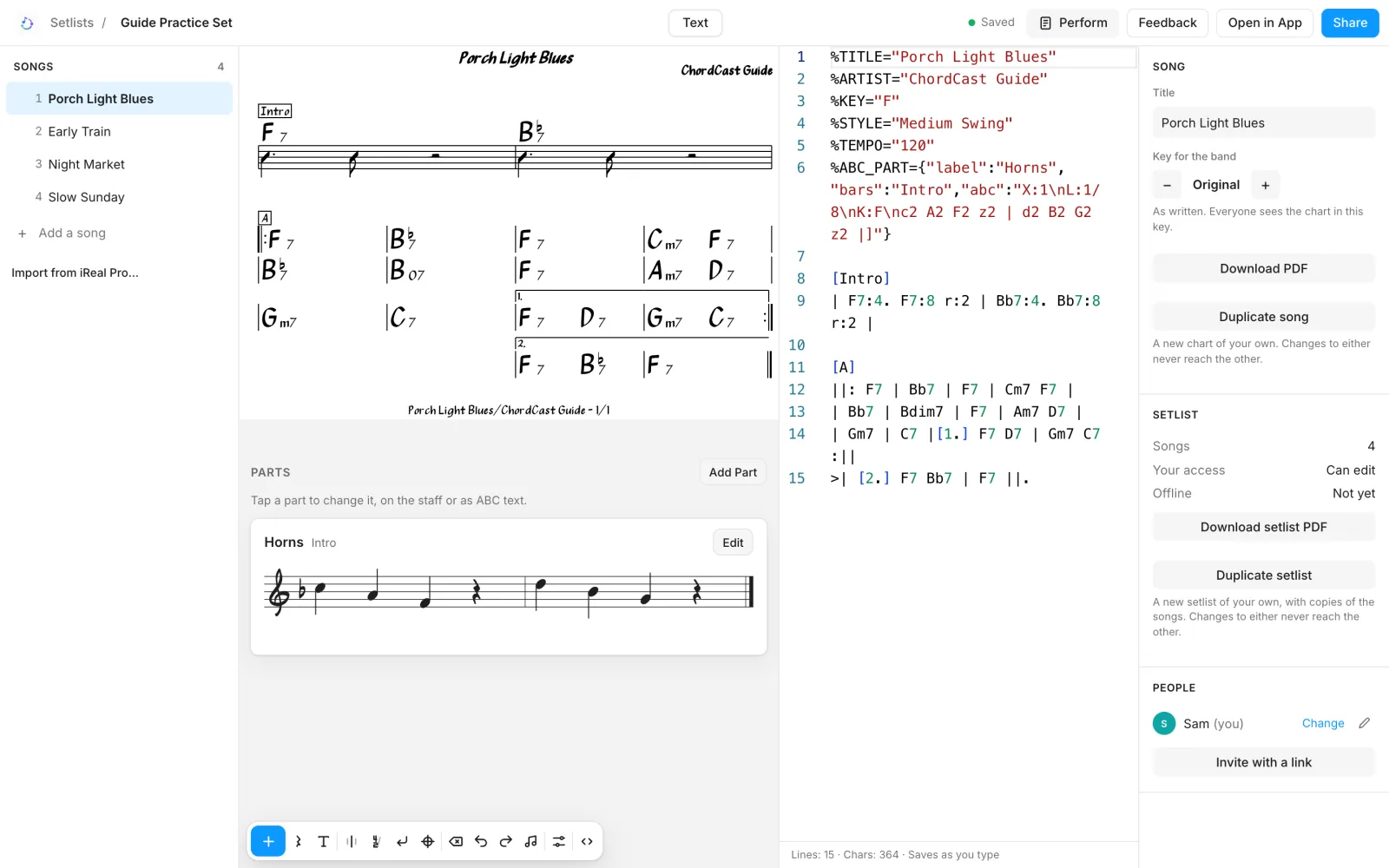
ChordCast has two editors for the same chart. The visual editor is the one you'll use most: tap a bar to change a chord, tap a barline to add a repeat. The text editor shows the chart as text, which is the fastest way to make big changes. Try both below. They're the real editors, running in this page.
Where the editors are
| Visual editor | Text editor | |
|---|---|---|
| iPhone, iPad | Open a chart and tap Edit (the pencil), or make a new chart with + | ‹› at the end of the editor's toolbar, or hold Edit and choose Text Editor. With colours, problem marks, and the symbols charts use above the keyboard. |
| Mac | Edit in the chart's toolbar, or press E | ‹›, or Text Editor in the Edit button's menu. A full code editor with multi-cursor editing, and a live preview beside it when the window is wide enough. |
| Android | Edit in the chart's toolbar | ‹›. A plain text field. |
| Web app | Always on screen for charts you can edit | Text at the top opens the text beside the visual editor; both stay in step. |
Switch to Visual takes you back from the text editor. Whichever you use, it's the same chart: a change in one is in the other.
Tutorial: the visual editor
Work through the steps in the live editor beside them (below them on a phone). Each step ticks itself off when the chart changes the way it asks. Nothing here is saved; Start over brings back the starting chart.
-
Tap Am7 in the second bar. Type
A7over it and tap Save.Typing replaces what's selected. Spellings like
Cmaj7,C-7orCøare understood too. -
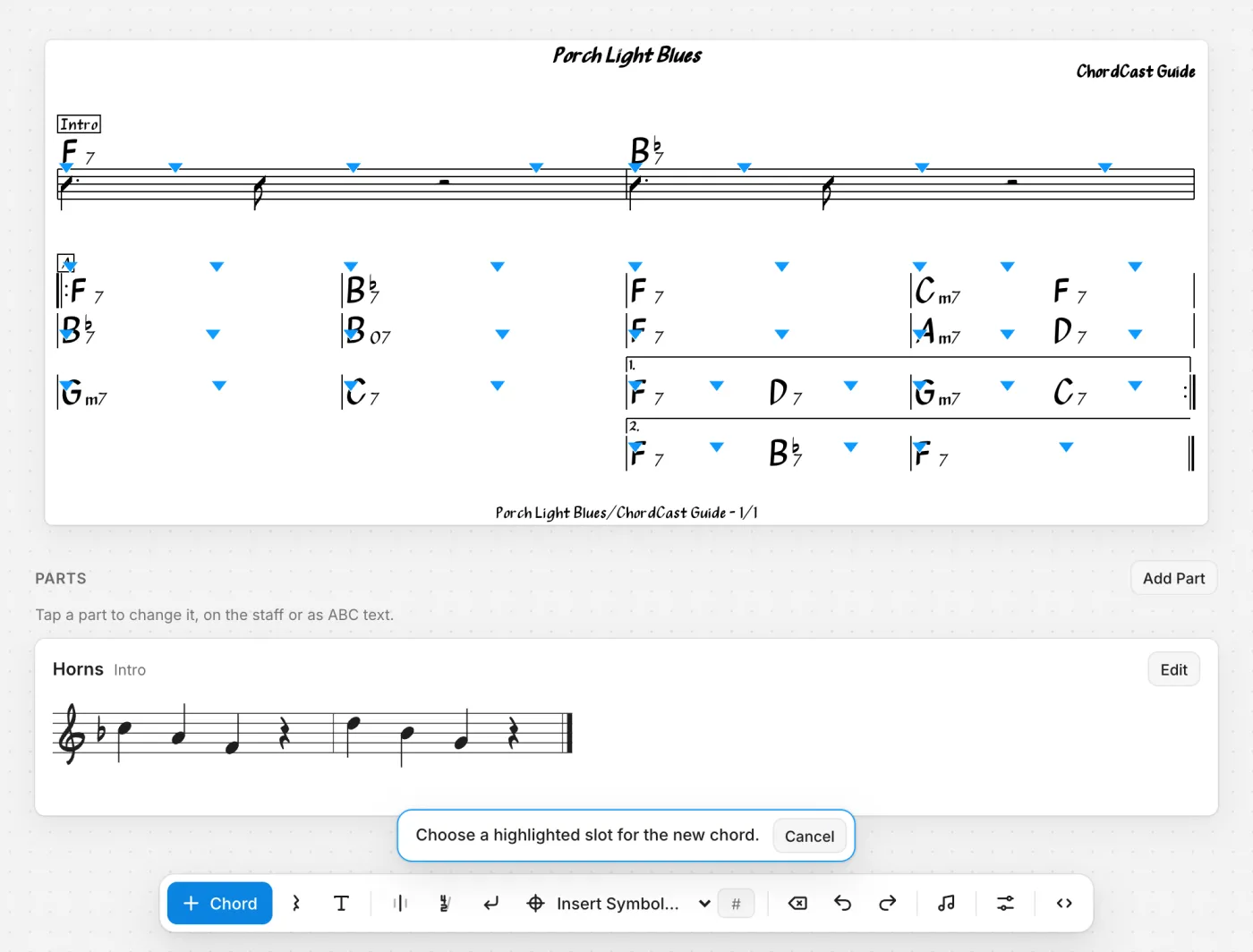
Tap + (Insert Chord) at the left of the toolbar. Blue triangles mark every spot a chord can go: tap the one after the C in the last bar. Type
E7and tap Insert.You can type several at once:
C Amfills one bar,C | Am | Dm G7fills three. -
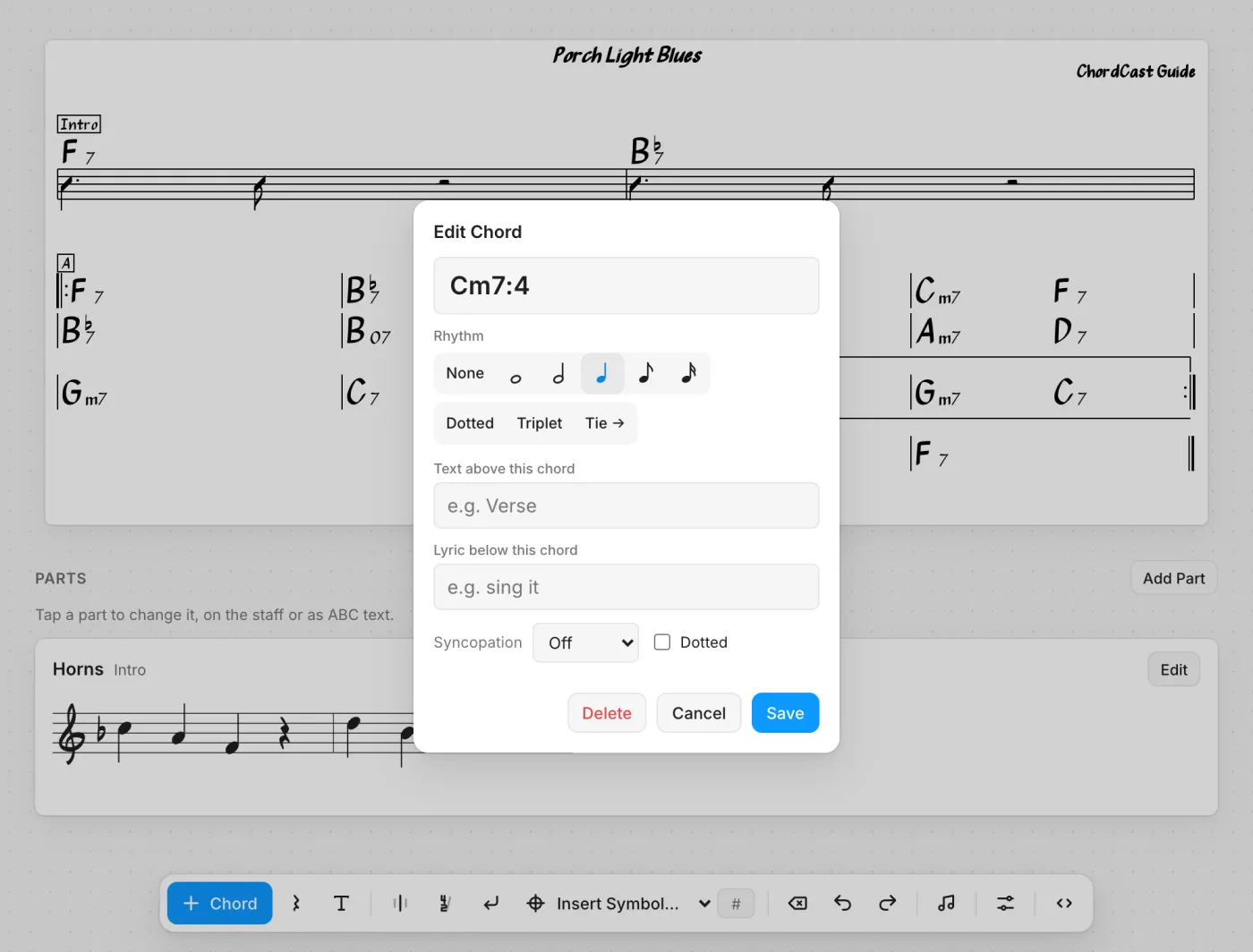
Tap any chord. Under Rhythm, pick a note length (try the quarter note) and tap Save. A staff appears under that line with the rhythm on it.
Dotted, Triplet and Tie → change the length; Syncopation pushes a chord ahead of the beat.
-
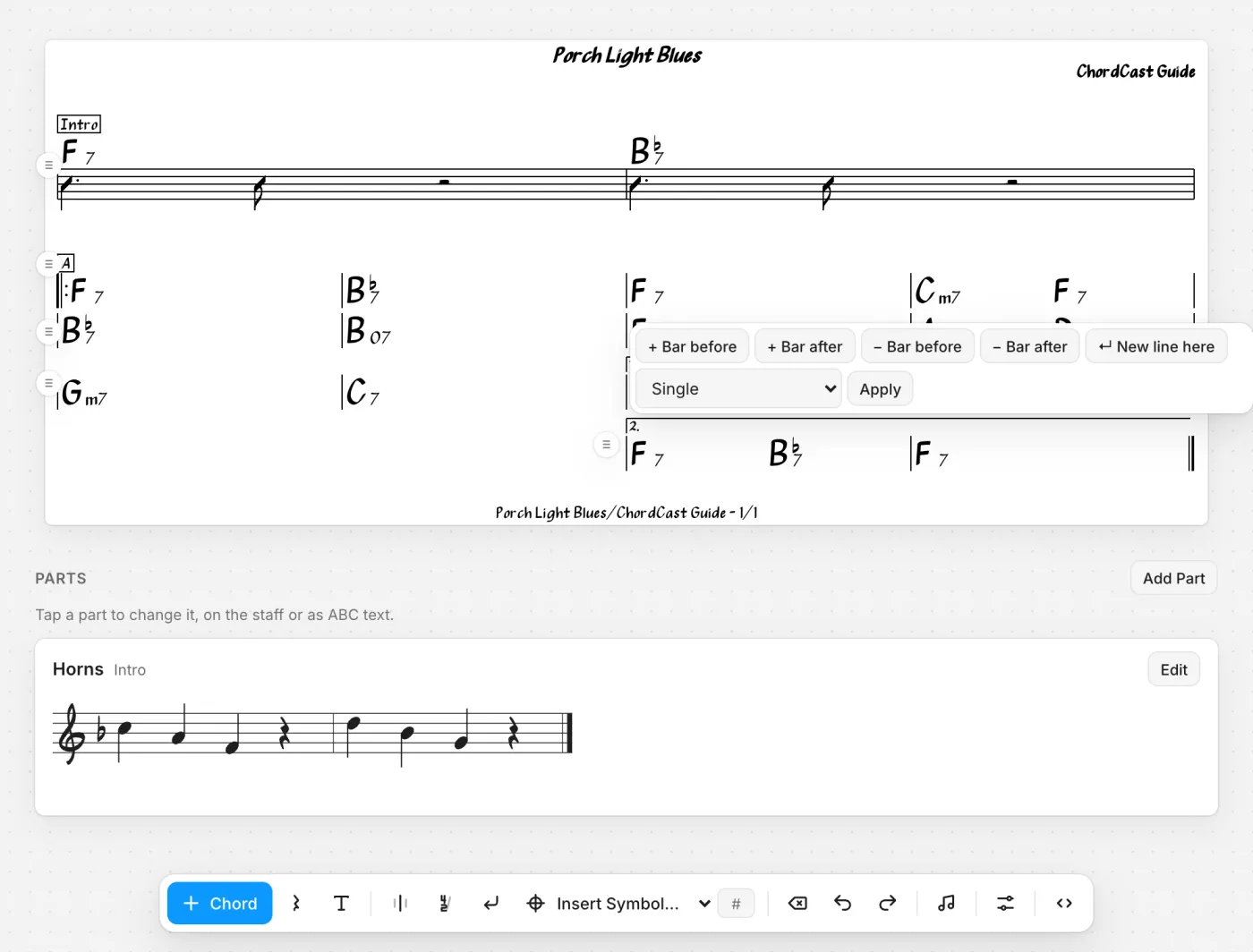
Tap the barline at the very end of the chart. Under Barline type choose Repeat end :||, then tap Apply.
The same menu adds or deletes a bar on either side, starts a new line at that barline, and sets how many times a repeat is played.
-
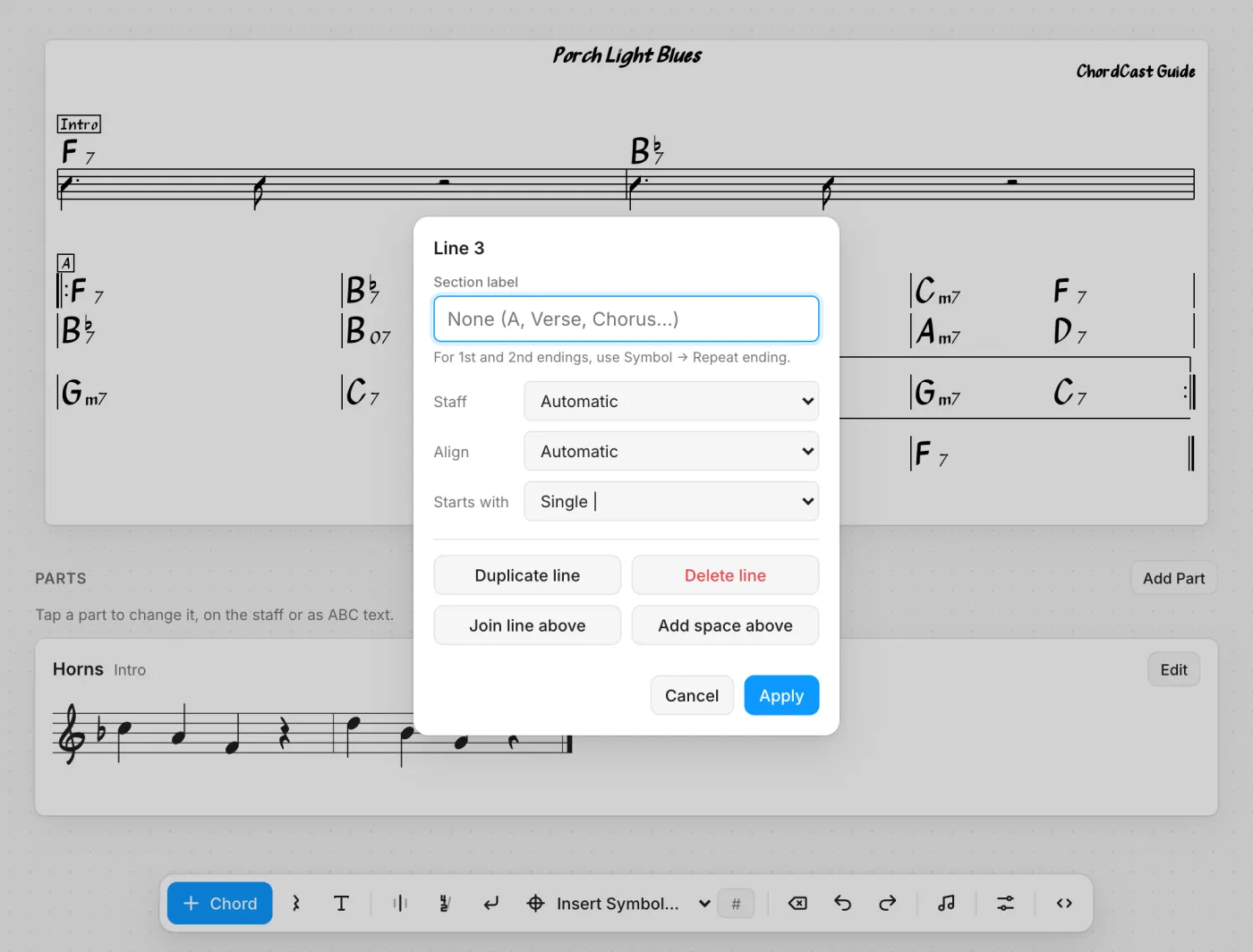
Tap the small ≡ handle at the left of the second line (on a computer, point at the line to see it). Type
Bunder Section label and tap Apply.The same dialog duplicates or deletes a line or a whole section, shows or hides the staff, and aligns a short line. Drag the ≡ handle to move a line, or a whole section.
-
Open Insert Symbol… (⊕ in the toolbar) and choose Coda, or Repeat ending (1., 2. …). Then tap a highlighted spot.
The list also has To Coda, Segno, D.S. and D.C. (al Coda, al Fine), Fine, the simile marks and a multi-bar rest. The # box beside it numbers a second coda or a second ending.
-
Tap Chart Settings (the sliders near the end of the toolbar) or the chart's title. Type
120under Tempo, or tap Tap in time a few times, and tap Save.The same dialog has the title, subtitle, artist, key, style and repeats. Change the key and it offers to move the chords with it. In the apps, a tempo turns on the tempo dot.
-
Drag a chord to another bar. Then tap Undo (↶) and Redo (↷) in the toolbar.
-
Tap ‹› (Edit as text) at the end of the toolbar. Below, you'll see the chart you just made, as text.
The live editor didn't load here. It runs at chordcast.app, or in the app.
The chart as text
The visual editor, tool by tool
The toolbar along the bottom, from left to right:
| Tool | What it does |
|---|---|
| + Chord | Pick a spot, then type the chord. Add a length like C:4 to give it a rhythm. |
| Rest | Pick a spot for a rest; set its length the same way. |
| Text | A note or direction, above the chords or at chord level (“Drums only”, “Horns in”). |
| Barline | Split a bar in two. |
| Time signature | Pick the bar where the meter changes and type it, like 3/4. |
| New line | Break a line at a barline, or add an empty line. |
| Insert Symbol… | Coda, To Coda, Segno, D.S. and D.C. (al Coda, al Fine), Fine, repeat endings, simile marks, multi-bar rests. |
| Delete | Pick a spot; whatever is just before it goes. |
| Undo, Redo | Step back and forward through your edits. |
| Parts (♫) | Melody, horn and riff lines in ABC notation, shown below the chart (melody parts). |
| Chart Settings | Title, subtitle, artist, key, style, tempo and repeats. |
| ‹› | Switch to the text editor. |
On the chart itself: tap a chord to edit it, its rhythm, a note above it or a lyric below it; drag a chord to move it. Tap a barline for repeats, adding or deleting bars, and starting or joining lines. Tap the title for Chart Settings. Use the ≡ handle beside a line for its options, or drag it to move the line.
Saving
- In your own library, tap Save (⌘S on a Mac). Leave with unsaved changes and ChordCast asks: Save and Go Back, Discard Changes or Cancel. If the app closes mid-edit, your draft comes back the next time you open the editor (“Recovered unsaved draft”).
- In a setlist shared to the cloud, edits save as you type (Saving…, Saved), and you tap Done when you've finished. A bandmate's edits to the same chart are merged into yours.
- If an edit would make a chart that can't be drawn, the visual editor refuses it and tells you why. A chart that can't be drawn opens in the text editor, and Switch to Visual waits until it's fixed.
Tutorial: the text editor, and editing many chords at once
Some edits are much quicker as text: changing the same chord everywhere it appears, pasting in a whole chart, copying a section and changing two chords in it, or typing a run of rhythms. On a Mac and in the web app the text editor is a full code editor, with the multi-cursor editing programmers use. The steps below use this editor, the same one, with a live preview underneath.
The shortcuts are shown for a Mac. On Windows and Linux, use Ctrl for ⌘ and Alt for ⌥. They need a keyboard, and work in ChordCast for Mac and the web app; the iPhone, iPad and Android text editors don't have them.
-
Double-click any
Bb7to select it. Press ⌘D three times: each press adds the nextBb7to the selection, with a cursor of its own. Now typeBb9. All four change at once.⇧⌘L selects every match in one go. Pressed one ⌘D too many? ⌘U takes back the last one; ⌘K ⌘D skips a match. Esc goes back to one cursor.
-
In the first bar, change
F7toF7:4. F7:8 r:2: a dotted quarter, an eighth and a half-note rest. The preview draws it on a staff.:1:2:4:8:16are the lengths,.dots one,~ties it to the next,ris a rest. More in the reference. -
Click anywhere in the last line and press ⇧⌥↓. The line is copied below itself. Change a chord in the copy.
⌥↑ and ⌥↓ move a line up or down; ⇧⌘K deletes it.
-
Press ⌥⌘F (Ctrl+H on Windows). Find
F7, replace withF9, and choose Replace All.The
Aaandabbuttons in the find box match case and whole words only, soF7doesn't catchF7sus.
When to reach for the text editor
- Renaming a chord everywhere: ⌘D or ⇧⌘L, as above, or find and replace.
- Copying a section and changing a bar or two: select the lines, copy, paste, edit.
- Typing a long chart from a paper sheet:
| Dm7 | G7 | CM7 | ./. |is quicker typed than tapped. - Pasting a chart a bandmate sent as text.
- Rhythms across many bars: type
:4,:8and ties straight in. - Fixing a chart that won't draw: the text editor marks the problem line (“Line 7: A section name is missing its closing ]”).
Everything the text can hold is in the chart text reference.